
Do you dream of seeing your photos in the style of your favorite anime films by Hayao Miyazaki? With AliveColors, it's easier than it seems. Built-in neural networks allow you to create images in the style of the legendary Japanese animator in just a couple of clicks.
In this tutorial, we will go step by step through how to turn an ordinary photo into a frame that looks like it came straight out of the animated film "Spirited Away" or "Howl's Moving Castle".
AliveColors offers two ways to process an image with a neural network: Local Generation and Cloud Generation. In our tutorial, we will cover both options.
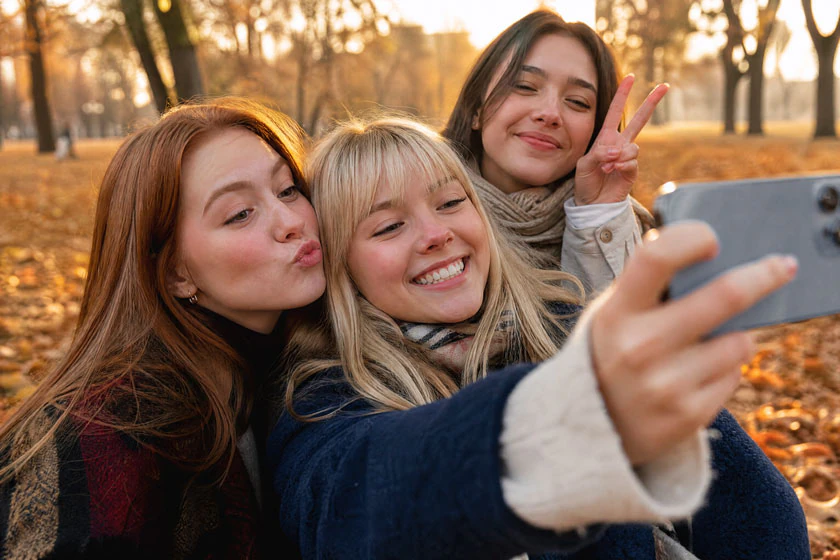
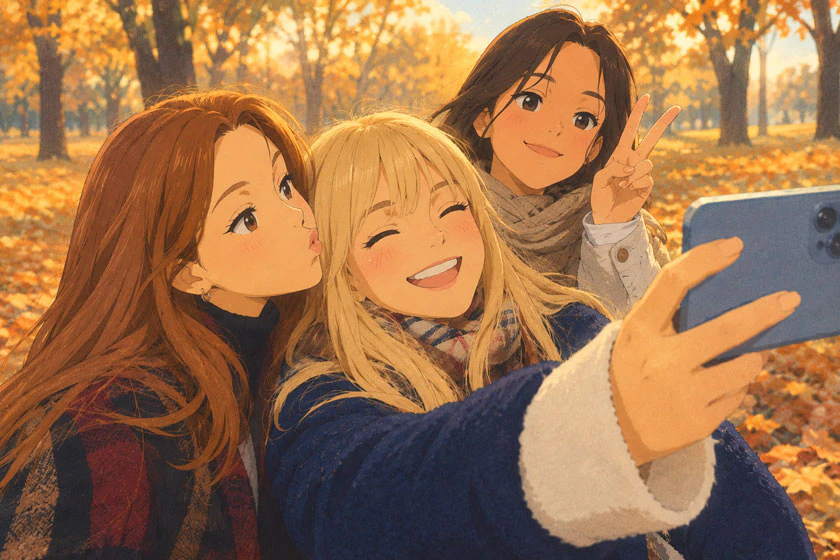
What you will need
- Installed graphic editor AliveColors.
- A photo you want to transform. Shots with nature, city streets, people, or animals work best - anything reminiscent of anime scenes.
- A bit of imagination and a willingness to experiment!
Launch AliveColors and open the desired image via File → Open or simply drag and drop it into the program window.
Tip: choose photos with good lighting and clear details-the neural network will find it easier to "understand" the scene.
Local Generation
Local Generation requires a sufficiently powerful computer with a dedicated (discrete) NVIDIA graphics card. We recommend using a GTX 1060 or newer model with at least 3 GB of memory.
Go to AI → Local Generation. A panel with generation settings will open.
Write a prompt. A prompt is a text description of what you want to see. To get a convincing anime result in the spirit of Miyazaki, it's not enough to simply write "anime style". The more detailed your description of the source image and the desired artistic style, the more accurately the neural network will convey your idea.
A good prompt should include:
- Description of the scene and objects: what is depicted, who the main characters are, which details are important (e.g., "a girl with an umbrella against a blooming garden").
- Atmosphere and mood: calm, magical, melancholic, joyful.
- Artistic features of Miyazaki's style: soft color palette, watercolor backgrounds, hand-drawn look, attention to nature details, absence of harsh shadows.
- Technical details: "studio quality", "detailed background", "warm light".
Example of a detailed prompt:
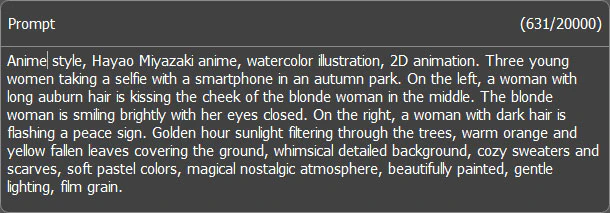 Example of a Ready Prompt
If you find it difficult to compose a detailed prompt yourself, use this lifehack: upload the original photo to any neural network with image recognition and ask: "Describe this image in detail in the anime style of Hayao Miyazaki. Include all important plot details, atmosphere, and style features". Copy the resulting text into the prompt field in AliveColors.
In the model dropdown list, select Z-Image-Turbo - it excels at stylization. Then adjust the main parameters:
- Strength - how much the image will deviate from the original. A value around 70 gives a good balance: photo features are preserved, but the style is clearly anime. Below 50, the photo barely changes; above 90, the original composition may be lost.
- Results - how many variants the neural network will generate. Start with 1–2 to quickly evaluate the result, then you can increase it.
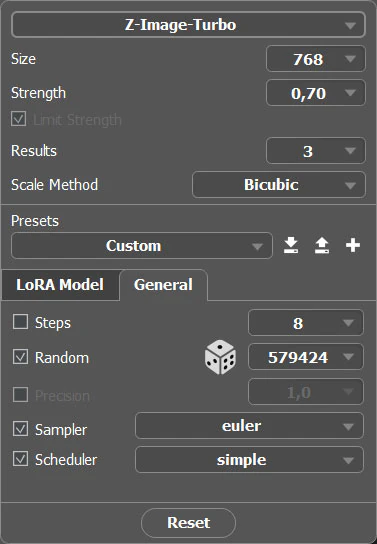 Local Generation Settings
Click the Run button and wait for the neural network to finish processing. This usually takes from a few seconds to a minute depending on your computer's power.
If you don't like the first result, don't worry - there are several ways to get a new one:
- Change the prompt - clarify details, add new accents, or change the mood of the description.
- Adjust the strength - a small change in this parameter can noticeably affect the outcome.
- Click the dice icon next to the Random checkbox - the program will generate a new random seed, and you will get a completely different but still prompt-compliant variant.
Experiment until you find the perfect combination!
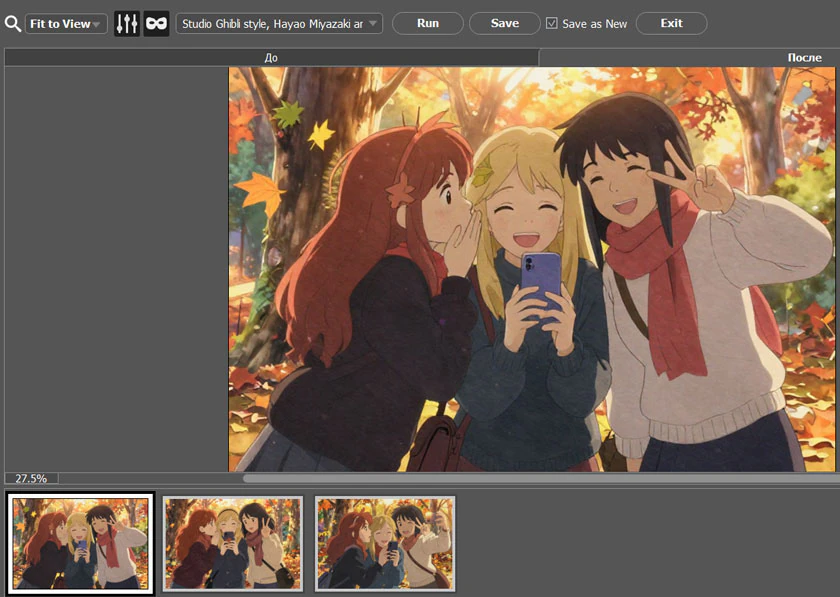 Local Generation Results
Useful tips for local generation
- Experiment with prompts: add words like "watercolor", "pastel", "dreamy", "fantasy" for different style nuances.
- For portraits, you can lower the strength to 50–60 to preserve more resemblance to the original.
- Try first slightly enhancing the photo (brightness, contrast) and then applying the neural network-details will be cleaner.
- Don't be afraid to combine: after the anime effect, you can add a slight film grain or soft glow for atmosphere.
Cloud Generation
If your computer's power is insufficient for local generation, or you want to get a result as close as possible to the original photo, use Cloud Generation. In this mode, all computations are performed on a remote server, so your PC is not burdened.
Cloud generation is well suited when it is important to preserve the composition and details of the original. The neural network takes your photo as a base and carefully "redraws" it in anime style, so the prompt can be shorter - just describe the desired style and atmosphere.
To run cloud generation, select AI → Cloud Generation from the menu. Then choose the Image-to-Image option, select a model, upload the original image as a reference, and enter your prompt. Click Start. You will get an image that exactly repeats the composition and details of the original, but in the chosen style.
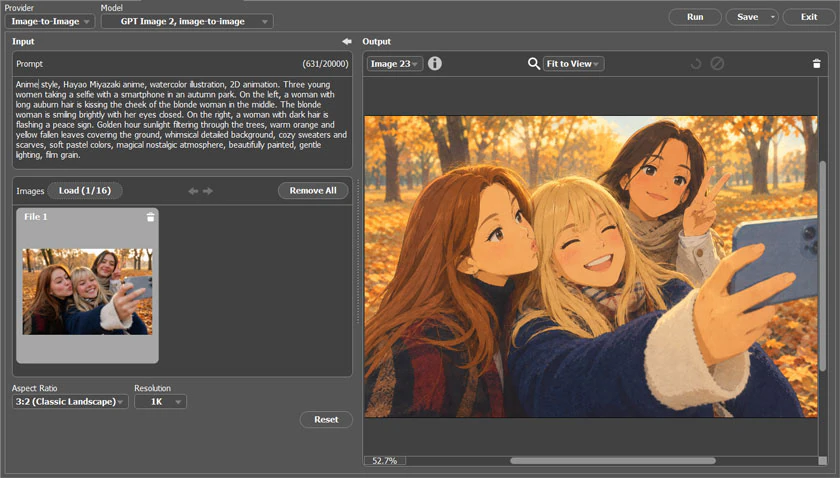 Cloud Generation
Now you know how to turn any photos into magical frames. Create and share your results!