
A Smart Object is a container layer that can hold data of various types (raster or vector). Smart objects preserve the original state of an image with all its original characteristics, allowing non-destructive editing.
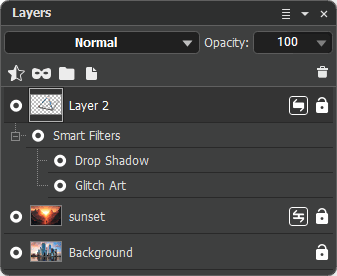 Smart Objects in the Layers Panel
You can perform the following operations with smart objects:
Transformations. It's possible to transform objects without losing image quality.
Adding Smart Filters. Apply effects and adjustments to a smart object as smart filters to avoid data loss.
Note: You can't perform operations on a smart object layer that alter its pixel data (such as using painting, retouching, or cloning tools) until you rasterize it. To perform operations that alter pixels, you can edit the smart object's contents (i.e. its source data), duplicate the smart object, or create new layers.
There are two types of smart objects:
Embedded  . The original image is stored within a smart object.
You can create embedded smart objects in various ways:
- Open an image as a smart object (the Open as Smart Object command in the File menu);
- Add a smart object to an open document (the Place Embedded command in the File menu);
- Drag a file into an open document while holding down the Alt key;
- Convert a single layer, multiple selected layers, or a group of layers to a smart object (the Convert to Smart Object command);
- Convert a linked smart object to an embedded smart object (the Embed Linked command).
Linked  . The original image is an external file (on disk). The contents of a linked smart object are updated whenever the original image is modified. Because linked smart objects use external files, their use significantly reduces file size when saving. When working with linked smart objects, you can use a common source file across multiple documents.
You can create linked smart objects in the following ways:
- Add a smart object to an open document (the Place Linked command in the File menu);
- Convert an embedded smart object to a linked one (the Convert to Linked command),
- Replace the contents of an embedded smart object with an external file (the Relink to File command).
Apply the following commands to a smart object from the Layers -> Smart Object menu:
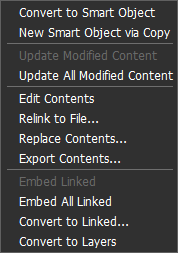 Smart Object Menu
Convert to Smart Object. The command places the selected layers into an embedded smart object. A smart object can contain a single layer, multiple layers, or a layer group. Other embedded and linked smart objects can also be placed within the smart object.
New Smart Object via Copy. The command allows you to duplicate an embedded smart object. You can also create a copy of an embedded or linked smart object using the Duplicate Layer or Copy to New Layer commands.
Update Modified Content. The command updates the contents of a linked smart object if the source external file has changed.
Update All Modified Content. The command updates the content of all linked smart objects in the document at once, whose source external file has been changed.
Edit Contents. The command allows you to edit the layers included in a smart object.
Relink to File. The command allows you to link a smart object to a new external file.
Replace Contents. The command allows you to replace the contents of a smart object (while preserving any added smart filters and transformations).
Export Contents. The command allows you to save the contents of a smart object to a file in the .akvis format.
Embed Linked. The command converts a linked smart object into an embedded smart object.
Embed All Linked. The command converts all linked smart objects in a document to embedded ones.
Convert to Linked. The command converts an embedded smart object to a linked one. You'll be prompted to save the contents to a file on disk.
Convert to Layers. The command converts the smart object back to its original layers. If the smart object contains multiple layers, it will be converted into a group.
Edit Contents
You can edit the contents of an embedded smart object:
By using the Edit Contents command (in the Smart Object menu). This saves the content as a temporary file to a disk and opens it in the image editor. After saving the edited document, the changes will be added to the embedded smart object. When you close the document, the temporary file will be deleted.
You can edit the contents of a linked smart object:
Using a third-party graphics program, process the linked file and save it in the same location and under the same name. The smart object will update automatically when switching to the document with the open smart object (in AliveColors).
By using the Edit Contents command (in the Smart Object menu). In this case, the external file will open in AliveColors for editing. After saving the edited document, it will be updated automatically.
Note: Editing a smart object creates an entry in the document history, so an automatic update will only occur if the most recent action in the history is selected. Otherwise, the smart object displays an out-of-sync status  . To apply the changes, update the smart object using the Update Modified Content command, which will remove all subsequent actions from the history.
When deleting, moving, or renaming an external file, the smart object associated with it will be marked  . To fix this, use the Relink to File command and select a new file.
Smart Filters
You can apply effects and adjustments to a smart object as smart filters. Adding smart filters does not change the original data.
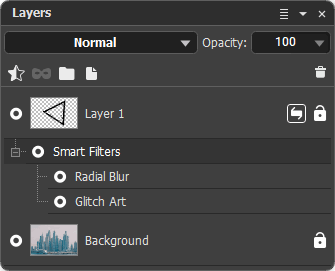 Smart Filters
Smart filter parameters can be changed at any time. The settings panel is accessed by double-clicking the filter name.
If you have a selection the smart filter will work within it.
When selecting a Smart Filter, its selection will be displayed in the Selection panel and can be edited using some of the selection tools, as well as by editing the corresponding selection channel.
An already added Smart Filter can be applied to a different selection. To do this, select that selection in the panel and launch the Smart Filter (double-click its name). After clicking the Apply button, the Smart Filter will be applied to the new selection.
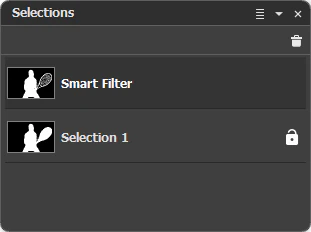 Smart Filter Selection
You can change the order of smart filters by dragging them. Duplicate a smart filter by dragging it to another smart object while holding down the Shift and Alt. keys.
When you select a smart filter, any later added filters become inactive and do not affect the result. When editing a smart filter, the result of the current and all previously added filters will be displayed. When transforming a smart object, all applied smart filters will be disabled and reapplied after the transformation is complete. When replacing content, smart filters will be applied to the new content.
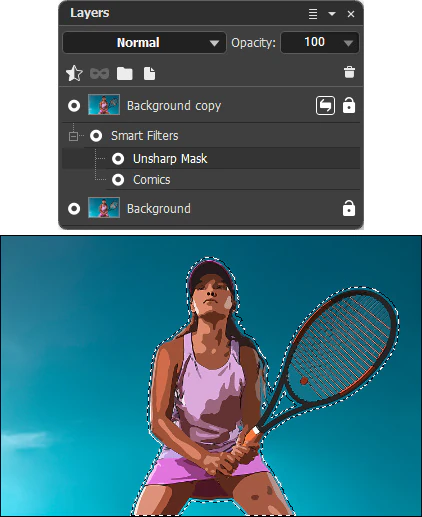
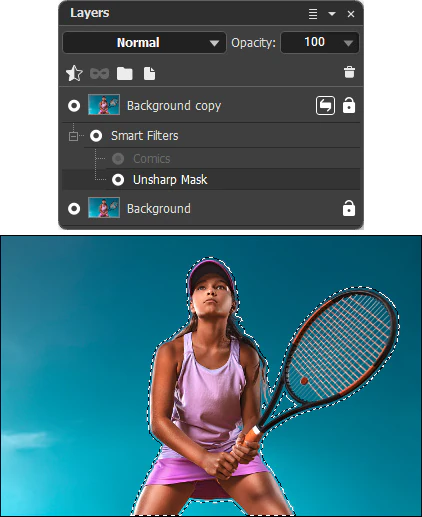
When you convert a smart object to layers (the Convert to Layers command), you can apply smart filters and transformation operations to the result or undo their effects.
Note: If a smart object contains more than one layer, smart filters and transformations cannot be applied.
When rasterizing a smart object (using the Rasterize Layer command), all contents of the smart object and any added smart filters will be merged into a single raster layer.
The Smart Filter menu contains the following commands:
Show/Hide - turns the smart filter's visibility and its effect on the smart object on/off. You can also do this by clicking the visibility indicator  /
/
Copy - copies the smart filter with all its settings to the clipboard;
Paste - adds the smart filter from the clipboard to the selected smart object;
Delete - deletes the selected smart filter.
You can drag and drop a smart filter into another smart object.