
Cloud Image Generation allows you to create images from a text description (prompt) using powerful AI models hosted on a third-party cloud platform. It can generate entirely new images or modify existing ones. An internet connection is required.
This feature enables users without high-performance computers to access advanced AI image generation models and create high-quality images without requiring powerful local hardware.
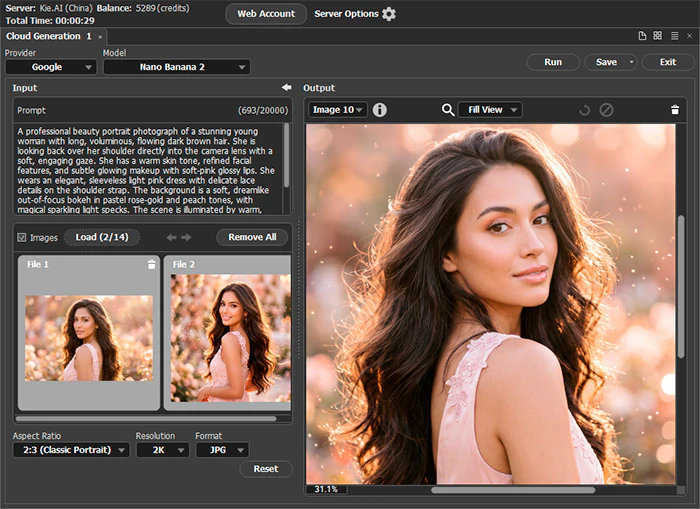 Cloud Image Generation
Attention! AKVIS does not accept payments, does not provide the services listed, and does not have your personal data. It only provides the ability to connect to third-party resources and directs you to them.
Select AI → Cloud Image Generation from the program menu.
To obtain an API Key, create an account or sign in at kie.ai.
- In the program, click Web Account to open the website, or visit it directly.
- On the website, click Get Started in the upper-right corner.
- In the Login / Register Kie window, either create a new account or sign in to an existing one. If required, add funds to your account balance.
- Copy your API Key from your account.
- Return to the program, open the Server Options window, and paste the API Key into the appropriate field.
Server Options. Configure the connection to the KIE.AI image generation service by providing your API key and the required server settings.
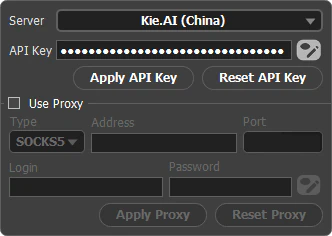 Server Options
Server. Choose a server from the list.
API Key. User ID.
Click Apply API Key to save the entered identifier. Click Reset API Key to restore the last saved key.
Use Proxy. To use a proxy, enable the check-box and configure its parameters.
Click Apply Proxy to save the entered proxy settings. Click Reset Proxy to return the values to the last saved ones.
Input. The left side of the window contains input data (which may vary for different models). The  button collapses this half of the window, and the
  button expands it.
Provider. Filter models by purpose or manufacturer.
Model. Select the generation model from the drop-down list.
Prompt. Enter a detailed text description of the image to be generated. You can enter the text in any language, but when creating complex, detailed prompts, it's best to use English for greater accuracy.
Negative Prompt. Add descriptions of items/objects that should not be in the generated image.
Note: You can read recommendations for writing a prompt.
AKVIS and its software, AliveColors, assume no responsibility for images generated using third-party AI models. Users are responsible for reviewing and complying with the terms of use, licensing conditions, and content policies of the respective AI model providers. Learn more.
Images. If necessary, add images that will be used during generation by clicking the Load button.
Aspect Ratio. Select the aspect ratio of the generated image.
Resolution. The size of the generated image.
Format. The format of the generated image (JPEG, PNG).
Strength. The impact of the source image content on the generation result.
Render Speed. Image generation speed.
Style. The style type for image generation.
Results. Number of results that will be generated in a single calculation.
Steps. Number of generation steps.
Seed (0-999999). The starting number for image generation. When the check-box is enabled, you can set a specific number; when disabled, a random number will be selected each time.
Expand Prompt. The server will use a special algorithm to improve the text description.
NSFW 18+. Enable the check-box to exclude unwanted generation options (adult content).
When you click the Run button, the request will be sent to an external server, where the image will be generated, and then the result will be transferred back to the program.
When you click the Cancel button, the generation process will be stopped.
Output. The generated images are displayed on the right side.
Select the result from the drop-down list (Result 1, Result 2, etc.).
Click to show the information about the selected generated image (size, model, generation time and cost, prompt).
Click  to re-download the generated result from the website into the program.
Click  to cancel loading the generated image from the website into the program.
Click  to delete the generated result.
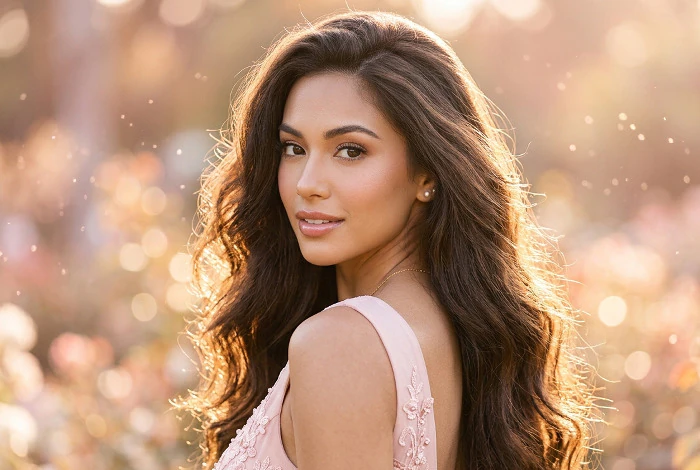 Model: Nano Banana 2. Prompt:
"A professional beauty photo of a stunning young woman with long, voluminous, flowing dark brown hair. She looks back over her shoulder directly into the camera lens with a soft, captivating gaze. She has a warm skin tone, delicate features, and soft, radiant makeup with soft pink, glossy lips. She wears an elegant, light pink sleeveless dress with delicate lace on the straps. The background is a soft, dreamy, blurred bokeh in pastel rose gold and peach tones with magical sparkling particles of light. The scene is lit with warm, diffused backlighting, which beautifully highlights the edges of her hair. A pure, high-fashion aesthetic."
Clicking the Save button allows you to open the current result or all generated images in a new file as separate layers.
Click Exit to close the generation options.